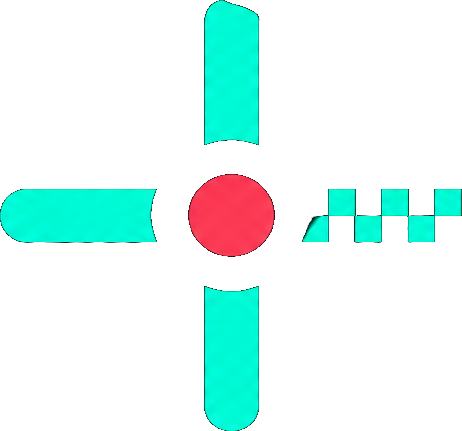
Our Valorant crosshair builder lets you create your own crosshair and see exactly how it looks on real map backgrounds before you use it in a match. Adjust the color, outlines, center dot and lines, then copy the code and import it into the game in seconds. You can also paste any existing crosshair code to edit it.
Edit an existing code
Preview is scaled for 1920×1080. Pick a map below to check visibility; “Real size” shows roughly how big it looks in game. Movement and firing error aren’t animated but are saved in the code.
How to Use the Valorant Crosshair Builder
- Start from scratch or from a code: Use the default crosshair, or paste a code from our crosshair gallery into the “Edit an existing code” field and click Load.
- Adjust the settings: Change the color, outlines, center dot, inner lines and outer lines with the sliders. The preview updates as you go.
- Check it on a map: Switch between map backgrounds and zoom levels. “Real size” shows roughly how big the crosshair looks at 1920×1080.
- Copy the code: Click Copy code when you’re happy with the result.
- Import it in VALORANT: Open Settings → Crosshair, click the import profile icon, paste the code and select Import. See our guide on how to copy a Valorant crosshair for screenshots.
Crosshair Settings Explained
- Color: Pick one of the in-game presets or enter any custom hex color.
- Outlines: A dark border around every part of the crosshair. It helps on bright backgrounds; lower the opacity if it feels too heavy.
- Center dot: A single point in the middle. Many players use a dot alone or combine it with short lines.
- Inner lines: The main lines of the crosshair. Length, thickness and offset (the gap from the center) define its shape.
- Outer lines: A second set of lines further out. Most players turn them off, but they can help as a reference for recoil.
- Movement and firing error: When enabled, the lines spread while you move or shoot. Turning them off gives a static crosshair.
Good Starting Points for Your Crosshair
You don’t have to start from a blank crosshair. Pick a design that is close to what you want, click Edit on its card and the builder opens with that code loaded. These collections are a good place to start:
- Best Valorant crosshairs: our top picks for beginners, long range, dark maps and more.
- Valorant pro crosshairs: codes from 30 professional players.
- TenZ crosshair: one of the most copied crosshairs in the game, a small static cyan cross.
- Valorant dot crosshairs: dot-only designs in every size and color.
- Valorant crosshair color codes: preset colors and popular custom hex colors.
- Funny Valorant crosshairs: cats, hearts, smileys and other shapes made from crosshair lines.
Tips for Building a Better Crosshair
- Keep it small. A small crosshair covers less of your target, which makes small adjustments on headshots easier. Short inner lines with a small offset are the most common setup among pros.
- Choose a color that stands out. Cyan, green, yellow and pink are rarely found on VALORANT maps, so they stay visible on almost every background. Check your color on several map backgrounds in the preview before you commit.
- Use outlines with care. Outlines help on bright walls and skies, but thick outlines make a small crosshair look bigger and darker. Try an outline opacity around 0.5 before turning them off completely.
- Go static if you are unsure. Movement and firing error make the lines spread, which can be distracting. Most players turn both off and learn spray control in the Range instead.
- Change one thing at a time. Adjust a single setting, copy the code and test it in a few matches. If you change everything at once, it is hard to tell what actually helped.
Crosshair Builder vs. In-Game Settings
You can make any crosshair inside VALORANT, but the in-game menu only shows it against a plain preview background. This Valorant crosshair builder lets you compare the same crosshair on several real maps, switch between zoom levels, and load any code from the internet in one click, without launching the game. When you find a design you like, copy the code and import it once, instead of moving every slider by hand.
Frequently Asked Questions
Will the code work in VALORANT?
Yes. The builder creates codes in the same format the game uses, so you can import them through the crosshair profile import option. If you edit an existing code, settings the builder doesn’t show, such as your ADS and sniper crosshairs, are kept as they were.
How accurate is the preview?
The preview is scaled for a 1920×1080 resolution and gives a close idea of size, shape and visibility. Your monitor, resolution and in-game graphics can make it look slightly different, so test the crosshair in the Range after importing it.
Can I edit a pro player’s crosshair?
Yes. Click Edit on any crosshair in the gallery, or paste its code here and click Load. You can then adjust it to suit your own preferences.
Is the crosshair builder free?
Yes. The builder is completely free and runs in your browser. You don’t need an account or a download.
Does the builder save my crosshair?
No. Copy the code before you leave the page and keep it somewhere safe, or import it into VALORANT straight away. To edit it again later, paste the code into the builder and click Load.
Disclaimer: This website is independently operated and is not affiliated with or endorsed by Riot Games. VALORANT and all associated trademarks and intellectual property are owned by Riot Games, Inc.